Derive

Graphics

Every picture on the site, page by page. On the left, the picture as it renders today, or the placeholder standing in for it. On the right, where it sits, the wireframe’s brief, the copy beside it, and for the ones still to make, a suggestion for what it could be.

Suggestions draw on the product screens in the Derive Product Marketing Guide (6 October 2026), cited by their number in its screen library. Use the screens as reference for the drawings rather than shipping them: they carry demo data, real-looking supplier details and, on some, browser chrome.

61 pictures · 57 built · 4 to make

Draw once, use many times

Most of the pictures still to make repeat an idea from another page. Grouped by the drawing they could share, the 4 gaps come down to 14 families, several of which already have a built picture to start from.

Home

Open the page

Built · animated Home · Hero

Brief

Product image / short loop Consolidated invoice inbox with entity tags, one prepared bill open beside its approval context

Copy beside it

Spend control for multi-entity companies

Run your group’s spend like one company.

Derive brings purchasing, contracts, budgets and accounts payable together across your group. The AP Agent prepares invoices for review, so your team spends less time keying and chasing and more time on the decisions that need its judgement. Derive gives finance more room to lead.

Family: One inbox across entities Component: src/components/HeroLoop.astro Also on: Home · The work multiplies (With Derive)

Built · animated Home · Product video

Brief

Not in the wireframe.

Copy beside it

Derive

Interactive product tour

Component: src/components/ProductVideo.astro

Built · animated Home · The work multiplies — Today

Brief

Explainer graphic — Today Scattered Xero files, inboxes and approval emails per entity

Copy beside it

Today

The work multiplies. The team doesn’t.

A new entity means another Xero file, another inbox, another set of approvals and another place for something to slip through. Most groups cope by working harder at the edges. Derive gives the work one place to happen.

  • Bills sit across separate files, and someone works out where each one belongs.
  • Approvals arrive without their context.
  • Commitments are hard to trace back from the bill.
  • Every new entity adds more coordination.

Family: One file at a time vs the whole group Component: src/components/WorkMultiplies.astro

Built · animated Home · The work multiplies — With Derive

Brief

Product UI — With Derive One inbox, prepared bill with approval context

Copy beside it

With Derive

  • Invoice work is prepared before your team opens it.
  • The right people make the call with the documents and history beside them.
  • Purchase orders and contracts sit within reach of each invoice.
  • One shared process across the group, with rules that can differ by entity.

Family: One inbox across entities Component: src/components/HeroLoop.astro (in WorkMultiplies)

Built · animated Home · Built for groups from day one

Brief

Explainer graphic Group at top, entities beneath — one inbox, one supplier record set, one rule set; each entity keeps its own approvers

Copy beside it

Built for groups from day one

Derive treats your entities as a structure, not a filter. A purchase request, a supplier contract or a budget line exists across the group from the start. Finance can look at the whole group or at one entity without logging out and back in. Managers see only the entities that are theirs.

  • One inbox, one set of supplier records, one set of rules.
  • Group view for finance, entity view for the people closest to the spend.
  • Your accounting stays in Xero. Derive sits alongside it.

Family: Group view and entity view Component: src/components/Groups.astro

Built · animated Home · Four modules — Accounts payable

Brief

Product image AP inbox across entities

Copy beside it

Accounts payable

One inbox for every entity’s bills. Prepared for review, matched and coded, then posted to the right Xero file after approval.

Family: One inbox across entities Component: src/components/Modules.astro

Built · animated Home · Four modules — Procurement

Brief

Product image Purchase request with budget impact

Copy beside it

Procurement

Requests, approvals and purchase orders across the group, with the budget impact visible before anyone says yes.

Family: Budget impact Component: src/components/Modules.astro

Built · animated Home · Four modules — Budgets

Brief

Icon (an icon, not a picture)

Copy beside it

Alongside them

Budgets

Show entity and GL account budgets at the request and at the bill.

Family: Budget impact Component: src/components/Modules.astro

Built · animated Home · Four modules — Contracts

Brief

Icon (an icon, not a picture)

Copy beside it

Alongside them

Contracts

Keep agreements, variations and renewal dates in view as the spend unfolds.

Family: The contract record Component: src/components/Modules.astro

Built · animated Home · AP Agent — scroll story

Brief

Three illustration layers Layer 1 · Inputs: invoice + supplier & entity context + your instructions. Layer 2 · Work: Extract → Match → Code → Check. Layer 3 · Output: prepared bill for review. Parallax: copy pinned, illustration layers build on scroll.

Copy beside it

AP Agent

Prepared for your review. Informed by your business.

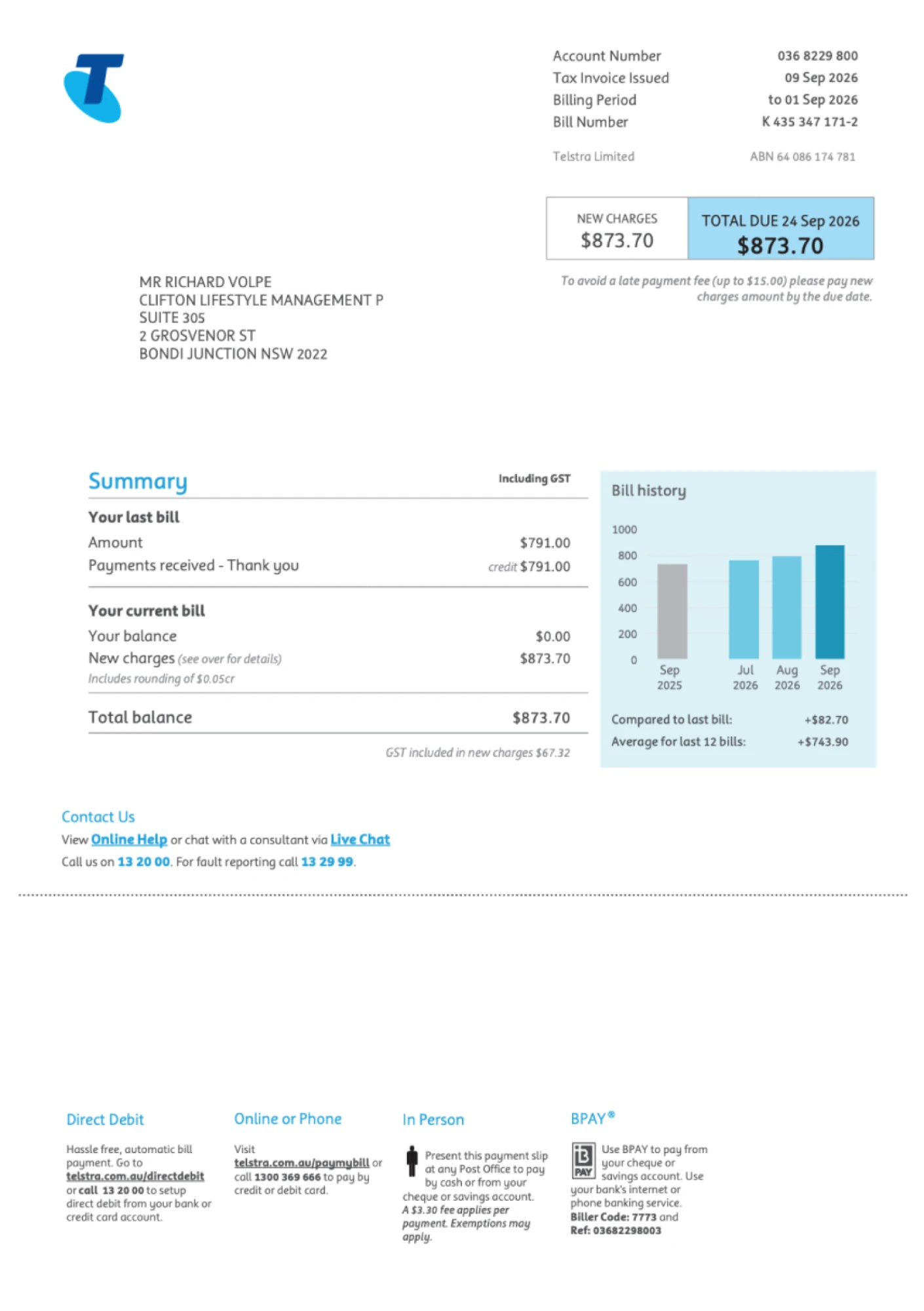
The AP Agent reads each invoice, matches the supplier and entity, prepares the coding and runs checks. It works from your own accounting instructions, kept per supplier and per entity, so a Telstra bill is coded the way your business codes it.

Your team reviews and approves. The AP Agent does not approve or pay invoices.

Family: The AP Agent at work Component: src/components/ApAgent.astro Also on: Accounts payable · What the AP Agent prepares

Built · animated Home · Integrations

Brief

Logos Xero, Workday, SAP, Okta

Copy beside it

Connect to the systems you already use

Derive syncs with Xero entity by entity. It also connects to SAP, Workday and Okta. Your accounting stays where it is.

Keep your tech stack, we bring the group together.

Component: src/components/Integrations.astro Also on: Derive for Xero · Beyond Xero

Accounts payable

Open the page

Built · animated Accounts payable · Hero

Brief

Product image Invoice beside its prepared coding, checks and originating email

Copy beside it

Accounts payable for multi-entity companies

Stop re-keying invoices across your entities.

Derive’s AP Agent extracts each invoice, matches the supplier and entity, prepares the coding and runs checks. Your team reviews and approves in one inbox.

Family: The prepared bill Component: src/components/accounts-payable/InvoiceFlow.astro

Built · animated Accounts payable · What the AP Agent prepares

Brief

Explainer graphic Extract → Match → Code → Check, fed by your accounting instructions

Copy beside it

AP Agent

What the AP Agent prepares

It works from your business’s own accounting instructions, so coding follows the way your team does things. Your team reviews, resolves exceptions and approves.

  • Extracts the invoice details.
  • Matches the supplier and the entity.
  • Prepares the GL and tax coding.
  • Runs checks and flags what needs a person.

Family: The AP Agent at work Component: src/components/ApAgent.astro

Built · static Accounts payable · Duplicates across the group

Brief

Product UI Duplicate flag: same invoice received by Entity A and Entity B

Copy beside it

Duplicates across the group

Derive sees every entity at once, so it flags an invoice sent to more than one entity by matching invoice numbers, amounts, items and billing details. A tool that sees one file can’t. Catching a duplicate before approval means it is caught before a payment run is built.

Drawn toRevised after the product screens

Model it on the product: in the bills register, a pink banner sits across the row — “This bill is already awaiting payment · A matching bill is already awaiting payment” — with Discard draft and Compare. Animate Compare opening the two bills side by side, entity column visible on each (Chatswood Offices and Southbank Holdings), with the matching fields lit: invoice number, amount, items, billing details. One caution: the captured warning matches a bill awaiting payment, and both captured bills aren’t clearly in different entities. Confirm it fires across entities before the picture shows that. Build it once and reuse it on Multi-entity and Multi-geo.

Family: Duplicate across entities Component: Duplicate · ap Product screens: 05 Duplicate warnings

Built · static Accounts payable · Review with the context beside you

Brief

Product screenshot Budget Insight overlay on a bill (with PO)

Copy beside it

Review with the context beside you

The invoice, its source email, the prepared coding and the checks sit side by side. Where an invoice relates to a purchase order, Derive matches it against the PO value or lines. Budget Insight shows what has been spent, committed and is pending, plus this invoice, and it works with or without purchase orders.

Drawn toRevised after the product screens

The product screen confirms this almost exactly: invoice on the left; on the right a Budget Insight card with the account line, one bar in Spent / Committed / Pending with “This bill +$2,909” hatched on the end, the budget, remaining amount and a “Within budget” pill, and the approved request linked beneath. Draw that card over the hero loop’s prepared bill, using the product’s labels. Show the PO match as a link, not the bar’s point.

Family: Budget impact Component: Bill · review Product screens: 54 Budget context inside the bill · 07 Prepared line coding

Built · static Accounts payable · Approve once and post to the right Xero file

Brief

Flow graphic Approval route → right Xero file (docs + approval record) ← payment status syncs back

Copy beside it

Approve once and post to the right Xero file

Approvals route by entity, amount or category. After final approval, the invoice posts to the right Xero file with its supporting documents and the approval record. Payment status syncs back from Xero.

Drawn toRevised after the product screens

Use the workflow canvas (Workflow): approval node cards end on Finance Review, then Post to Xero, which matches the product’s order. The bill drops into one of four Xero-file cards (entity name, real Xero logo) with two attachments riding along: the PDF and an “Approval record” chip. A “Posted to Xero” pill and a “View in Xero” link land on the bill. Then, as a separate beat, a payment status comes back. The guide asks to keep posting, payment and reconciliation distinct, so don’t blur them into one “synced” moment.

Family: Derive and the Xero files Component: Workflow · xero Product screens: 28 Approval context and summary · 29 Approval routing and stages · 11 Payment approval and stages

Built · static Accounts payable · Payment runs

Brief

Video / product UI One payment batch across entities, reviewed before payment

Copy beside it

Payment runs

Run one payment batch across your group.

Paying suppliers across entities usually means building a batch in each file. Derive lets your team prepare one payment run across the group, built from invoices that are already approved. Your team reviews the batch before anything is paid.

Drawn toRevised after the product screens

The product has a stronger picture than the one I first proposed. Three beats. 1: select approved bills across entities, with entity and due-date filters and a selected total. 2: “Review the payment run”, bills grouped by entity, each with “Pay from (Xero bank account)” and one bank file per entity. The product’s own line belongs here: nothing is paid until the run is approved and the bank processes the files. 3: the dark run header with its stage track — Build → Approve → ABA files → Bank → Xero → Reconciled — advancing to Approve and holding there. The guide wants preparation, bank, Xero and reconciliation kept distinct, and the stage track does that on its own.

Family: The payment batch Component: PaymentRun · ap Product screens: 10 Payment runs overview · 11 Payment approval and stages · 14 Select bills across entities · 15 Review the run before saving

AP Agent

Open the page

Built · static AP Agent · Hero

Brief

Explanatory illustration Invoice + supplier & entity context + your instructions → extract, match, code, check → prepared bill for review

Copy beside it

AP Agent

Invoice work that’s ready before you open it.

The AP Agent extracts the details, matches the supplier and entity, codes the bill and runs checks, using your business’s own accounting instructions. Your team reviews and approves.

Drawn to

The homepage scroll story told in one frame, as a hero loop on the InvoiceFlow engine: the three inputs (Telstra invoice, Chatswood Offices + supplier defaults, the instruction card) slide in from the left and converge on the AP Agent star; the four steps tick past under it; the prepared bill lands on the right with “Ready for review”. Same characters and numbers as the homepage panels, so the two read as one story.

Family: The AP Agent at work Component: Agent · hero Product screens: 56 AP Agent internal trace (reference only)

Built · staticNot on the page yet AP Agent · What it does, step by step

Brief

Explainer graphic Five steps, highlighted as each one is described

Copy beside it

What it does, step by step

  • Extract — It reads the invoice and pulls out the supplier, amounts, dates and lines.
  • Match — It matches the supplier and the entity the bill belongs to.
  • Code — It prepares the GL and tax coding.
  • Check — It runs checks and flags what needs a person.
  • Review — Your team reviews and approves.

Drawn to

A sticky picture beside the five steps: one invoice that changes as each step scrolls into focus — fields outline as they’re extracted, the supplier and entity chips snap on, GL codes fill in, a check list ticks with one amber flag, and finally a person’s avatar with Approve. The current step in the copy highlights in step. This replaces the icon cards the page shows today, which is a component change as well as a picture.

Family: The AP Agent at work Component: Agent · steps

Built · animated AP Agent · What it does, step by step — under the steps, which follow its animation

Brief

Not in the wireframe.

Copy beside it

What it does, step by step

Suggestion

The bill review screen drawn whole on an office photo, under the five step cards: the real Telstra invoice (an image), the prepared bill at the same width (supplier record, one check needing review, spend against history, the bill’s flow) and the Agent panel with its five steps. Loop: the steps tick down the panel and the fields each produced fill in on the bill, then the check opens. Run time and pipeline names from the product’s Agent panel are left out.

Family: The prepared bill Component: src/components/ap-agent/BillScreen.astro Product screens: Bill review, approval tab (Telstra), supplied 25 Oct 2026

Built · static AP Agent · Give instructions in natural language

Brief

Product image Supplier instruction — “Consolidate Telstra bill into one line, code to Telephone and Internet” — with revision history

Copy beside it

Give instructions in natural language.

Every business codes an invoice its own way. The AP Agent works from instructions kept for each supplier and each entity. For example, an instruction might say to consolidate a Telstra bill into one line and code it to the Telephone and Internet account.

Those instructions are revised as your team corrects the agent’s work, and the history is kept. When someone moves on, what they knew stays with the business.

Drawn toRevised after the product screens

The Telstra instruction as the product publishes it: a short article (consolidate the bill into one line, code to Telephone and Internet) with a version list beside it and a change comparison between the last two versions, the added words highlighted. Loop: a correction on a bill produces a new version at the top of the list. Leave out names and edit controls. The editor in the screens is internal, and who owns and publishes customer instructions is an open product check.

Family: The AP Agent at work Component: InstructionBox Product screens: 04 Invoice coding instructions · 59 Published business instructions · 60 Knowledge version history

Built · animated AP Agent · Review processed bills with ease

Brief

Product image Prepared bill with checks and source documents beside it, exception flagged

Copy beside it

Review processed bills with ease.

The AP Agent prepares and your team approves. It does not approve invoices and it does not pay them. Each invoice comes with its checks and source documents beside it, so reviewers aren’t hunting for context and exceptions stand out.

SuggestionRevised after the product screens

Screen 06 is this picture. Draw it from that: the invoice on the left with Invoice / Email / Documents tabs beneath; on the right the prepared record — vendor, legal name, Xero entity, owner, ABN “Active”, GST status — then “1 check needs review” in amber: bank details differ from the vendor record, with the on-file values beside them and “Request bank update”. Under it, “Passed: ABN, vendor name, GST status”. Submit is held until the check is resolved. Use fictional supplier and bank details; the capture’s are real-looking.

Family: The prepared bill Component: src/components/ap-agent/ReviewScene.astro Product screens: 06 Prepared invoice and bank exception · 08 The source email · 09 Supporting documents

Procurement

Open the page

Built · animated Procurement · Hero

Brief

Flow graphic Request → Approval → Purchase order → Matched invoices

Copy beside it

Procurement for multi-entity companies

Purchase requests shouldn’t live in your inbox.

Raise, approve and turn requests into purchase orders across every entity. Finance sees the budget impact before anyone says yes.

Family: Approval rules and routes Component: src/components/procurement/PoFlow.astro

Built · animated Procurement · One set of rules across the group

Brief

Explainer graphic $300 office supplies → auto / local · $50,000 fit-out → executive, from any entity

Copy beside it

Every purchase, from the rule to the invoice

One set of rules across the group

Set your approval rules once and apply them to every entity. For example, a $300 office supply request can approve automatically or route locally, while a $50,000 fit-out escalates to executive management, whichever entity it comes from. When you add an entity, the same rules apply to it.

Family: Approval rules and routes Component: src/components/procurement/ApprovalRules.astro

Built · animated Procurement · See the budget impact before saying yes

Brief

Product screenshot Atlassian subscription, request #1266 — entity budget fine, subscriptions budget exceeded

Copy beside it

See the budget impact before saying yes

The request shows the supplier, entity, line items and quote beside its impact on the entity budget and the GL account budget. A request can fit the entity budget and still push one GL account over its own, and Derive shows both.

Family: Budget impact Component: src/components/procurement/BudgetImpact.astro Also on: Budgets · At the request (could reuse)

Built · animated Procurement · Keep the commitment connected to the invoice

Brief

Product UI PO with matched invoices: billed vs remaining, linked request & agreement

Copy beside it

Keep the commitment connected to the invoice

When invoices arrive, they match against the purchase order’s value or lines, so you can see what has been billed and what remains. The original request stays within reach, and the purchase order links to the supplier agreement where there is one.

Family: The contract record Component: src/components/procurement/PoInvoices.astro

Budgets

Open the page

Built · static Budgets · Hero

Brief

Product image Entity budget and GL account budget side by side, with request impact and invoice drawdown

Copy beside it

Budgets for multi-entity companies

Don’t find out you’re over budget after month-end.

Derive shows the impact on entity and GL account budgets before you approve a purchase, and tracks budget as invoices arrive, with or without purchase orders.

Drawn toRevised after the product screens

A hero loop on the PoFlow engine, told as one budget’s month, using the product’s terms: two bars side by side (entity budget; Subscriptions GL account), segmented Spent / Committed / Pending. A request arrives and its impact shows as a hatched segment on both; the entity bar stays green, the GL bar runs past its line in red with “Will exceed budget”. It’s approved and the hatch turns to Committed, then invoices arrive and draw it down to Spent. End on the product’s “available to request” figure. Show warnings only; whether thresholds can also route or block is still an open product check.

Family: Budget impact Component: Budget · hero Product screens: 46 Marketing budget balance · 55 Entity and GL budget impact before approval · 54 Budget context inside the bill

Built · static Budgets · At the request and at the invoice — At the request

Brief

Product image · Request Entity budget and GL account budget side by side on the request

Copy beside it

At the request

At the request and at the invoice

The request shows its impact on the entity budget and the GL account budget side by side. Company headroom can hide an account-level overrun. For example, a software subscription can fit the entity budget and still exceed the subscriptions budget. You see both before saying yes.

Drawn to

Reuse BudgetImpact from the procurement page as it stands — it is exactly this picture (the Atlassian request, entity fine, subscriptions over). Pair it with the bill picture beside it so the two cards read as “before” and “after” the money is committed.

Family: Budget impact Component: BudgetImpact Product screens: 55 Entity and GL budget impact before approval

Built · static Budgets · At the request and at the invoice — At the bill

Brief

Product image · Bill Budget Insight overlay beside the invoice, catching an over-budget bill Bill screen: show the overlay only, ideally catching over-budget spend.

Copy beside it

At the bill

Budget Insight sits beside the invoice and shows what has been spent, committed and is pending, plus this bill. Your team sees each bill against its budget as it arrives.

Drawn toRevised after the product screens

The Budget Insight card alone, as the wireframe asks, in the product’s layout: account line, one bar of Spent / Committed / Pending with this bill hatched on the end, the budget and remaining figures, and a status pill. The captured example says “Within budget”; flip it to over budget for the picture (the bill’s segment runs past the line, pill reads over budget), which is what the wireframe wants to show. Same component as the Accounts payable “Review” picture.

Family: Budget impact Component: Budget · bill Product screens: 54 Budget context inside the bill

Built · static Budgets · Start with AP. Add purchase orders when you need them.

Brief

Explainer graphic AP only → AP + Procurement: budget impact moves earlier

Copy beside it

Start with AP. Add purchase orders when you need them.

You can manage budgets at invoice time without introducing purchase orders or spend pre-approval first. When you add Procurement, the budget impact appears at the request as well.

Drawn to

One horizontal timeline of a purchase — Need → Request → Approval → PO → Bill → Paid — drawn twice. Top row, “Start with AP”: the steps before Bill are faint and a small budget gauge sits on Bill. Bottom row, “Add Procurement”: the early steps fill in and a second gauge appears on Request, with an arrow showing the check moving earlier. Diagrammatic, no product chrome.

Family: Budget impact Component: Budget · start

Built · static Budgets · Group view and entity view

Brief

Product image Group budget view vs entity manager view

Copy beside it

Group view and entity view

Finance sees the budget position across the group from one screen. Entity managers see only their own entities’ budgets, invoices and requests.

Drawn toRevised after the product screens

A budget table modelled on the product’s register (account, entity and department budgets with period and available amount), under the same Group view / Entity view pill as the homepage. In group view the rows span entities with a total; in entity view it narrows to Chatswood Offices’ lines. The demo register covers one entity, so the multi-entity rows here are illustrative.

Family: Group view and entity view Component: Budget · views Product screens: 44 Budget register

Contracts

Open the page

Built · static Contracts · Hero

Brief

Product image Contract record showing the agreement, its value and its renewal date

Copy beside it

Contracts and renewals for multi-entity companies

Know what you’ve signed before it renews.

Derive keeps every agreement, its value and its renewal date against the supplier, and connects it to the purchase orders and invoices that follow.

Drawn toRevised after the product screens

Draw the product’s agreement overview, re-cast with our data. Supplier name and “Active” pill, owner and the originating request. Contract value as one large figure, broken into original + variation. Beside it, Billed to date and Available to bill. One bar under it: billed solid, unbilled pale, the variation hatched on the end. Under that a term bar (started → ends) with chips: “36-month term · Auto-renews · 30-day notice”. Animate the bar filling as bills land. This covers all three things in the hero line — agreement, value, renewal — from a screen that already exists.

Family: The contract record Component: Contract · hero Product screens: 42 Gresham agreement overview · 40 Contract register

Built · static Contracts · One record for every supplier agreement

Brief

Product image Signed document beside its structured contract details

Copy beside it

One record for every supplier agreement

Each agreement sits against its supplier with the signed document and its key details: dates and values. Every entity’s agreements live in one place. Group finance sees everything. Local and regional managers see only the agreements that apply to them.

When several entities use the same supplier, you can see it, and you can start a group conversation instead of negotiating site by site.

Drawn toRevised after the product screens

The record’s tabs, as in the product: Terms (annual and total value, currency, billing, term, owner as separate fields), Documents (an executed agreement and a draft, each with a preview) and Stakeholders (requestor and approver). Show Documents in front with the executed PDF’s first page peeking out, and the Terms fields beside it. Under it, entity chips — “Used by Chatswood, Parramatta, Southbank” — for the second paragraph. The register view (agreement value, remaining value, entity, term, renewal date) could stand in if one frame is needed.

Family: The contract record Component: Contract · record Product screens: 48 Gresham commercial terms · 49 Gresham documents · 50 Gresham stakeholders · 40 Contract register

Built · static Contracts · Reminders ahead of every renewal

Brief

Product image Renewal timeline with a reminder

Copy beside it

Reminders ahead of every renewal

Set alert windows ahead of a renewal or a cancellation deadline, for example 30, 60 or 90 days. The right person is reminded while there is still time to renegotiate, change the tier or end the agreement.

Drawn toRevised after the product screens

Change of course. I first proposed a reminder pop-up with Renegotiate / Change tier / Cancel buttons. The screens don’t show reminders being sent, and the guide lists “which renewal notifications or actions actually run” as open. So draw what exists: the renewals view, with three figures across the top (annual recurring spend, renewal exposure in the next 90 days, renewals due), monthly bars of upcoming renewals, and the “Upcoming renewals” table with vendor, date, owner, annual spend and an urgency pill (“31–60 days”). Flag to the copywriter that the section’s line promises alert windows the screens don’t yet show.

Family: The contract record Component: Contract · renewals Product screens: 41 Renewals overview · 52 Monthly renewal pipeline · 53 Renewal dates and owners

Built · static Contracts · Keep track of what has been agreed

Brief

Explainer graphic Contract → purchase orders → billed amounts

Copy beside it

Keep track of what has been agreed

See the contract value, approved variations and the amounts billed. Follow the purchase orders and invoices that relate to the agreement, so the next renewal decision starts from the full record.

Drawn toRevised after the product screens

The product’s “Purchase orders & bills” table under the contract: the original PO (value, billed, remaining 0, status Billed) with its paid bills nested beneath, then the approved variation as its own PO line, partly billed, with one bill “Awaiting payment”. Above the table, the contract’s billed / unbilled / variation bar. It’s the same idea as my first suggestion, but the real structure (variation as its own line) is clearer and shows “approved variations” honestly.

Family: The contract record Component: Contract · agreed Product screens: 43 Gresham POs, variation and bills · 42 Gresham agreement overview

Multi-entity

Open the page

Built · static Multi-entity · Hero

Brief

Product image Consolidated inbox with entity tags, one prepared bill open beside its approval context

Copy beside it

For multi-entity companies

AP and purchasing for multi-entity companies on Xero.

Derive brings purchasing, contracts, budgets and accounts payable for every entity into one place. The AP Agent prepares each invoice, and your team reviews and approves.

Drawn to

This is the homepage hero’s brief word for word — reuse HeroLoop. If the page needs its own picture, keep HeroLoop and swap the bill for one whose entity tag is the point (e.g. a Brightline bill with “Matched to Chatswood Offices · 1 of 24 entities”).

Family: One inbox across entities Component: HeroLoop

Built · static Multi-entity · Where the work gets hard — 01 Every invoice starts with a lookup

Brief

Product image Bill with entity, supplier and coding prepared

Copy beside it

Day to day

Every invoice starts with a lookup

Which entity, which supplier, which coding and tax treatment. Switching entities all day is like switching boards in Jira. Each switch costs a little, and the cost repeats on every invoice.

With Derive: The AP Agent matches the supplier and entity and prepares the coding from instructions kept per supplier and per entity. Your team reviews it.

Drawn to

The prepared bill in a wide crop, with the three answers called out: entity chip, supplier match, coding lines — each with a small AP Agent star. The four picker slides that show a bill should share one drawing with different call-outs.

Family: The prepared bill Component: Bill · lookup Product screens: 07 Prepared line coding

Built · static Multi-entity · Where the work gets hard — 02 Invoice data is keyed in by hand

Brief

Product image One inbox with extracted invoice details

Copy beside it

Day to day

Invoice data is keyed in by hand

Invoices arrive in an AP inbox and are opened, keyed, coded and filed, one entity at a time.

With Derive: Every entity’s invoices land in one inbox. The AP Agent extracts the details before your team opens the invoice.

Drawn to

The Modules AP inbox at 16 : 9 — rows arriving with “AP Agent preparing…” then filling in supplier, entity and amount. It already exists as an animation; only the crop is new.

Family: One inbox across entities Component: Inbox · keying Product screens: 03 Email intake · 02 Bills across entities

Built · static Multi-entity · Where the work gets hard — 03 Group payables are hard to see

Brief

Product image Group payables view across entities

Copy beside it

Day to day

Group payables are hard to see

Each entity’s invoices sit in its own file, so seeing what the group owes means building the picture by hand.

With Derive: Group finance sees every active invoice across the group from one screen. Entity managers see only their own.

Drawn toRevised after the product screens

Model it on the product’s bills register: four dark stat cards across the top (Total outstanding, Overdue, Due this week, Paid this month), status tabs (Draft, Awaiting approval, Awaiting payment, Paid), and rows with an Entity column across “5 connected entities”. The Group view / Entity view pill narrows the rows to one entity. Same drawing family as Budgets’ group view.

Family: Group view and entity view Component: Views · payables Product screens: 01 A shared finance dashboard · 02 Bills across entities

Built · static Multi-entity · Where the work gets hard — 04 Payment runs are built file by file

Brief

Product image Group-wide payment batch for review Confirm batching.

Copy beside it

Day to day

Payment runs are built file by file

Paying suppliers across the group means batching in each file, week after week.

With Derive: Payment runs prepare a group-wide batch through one front door, for your team to review before anything is paid.

Drawn toRevised after the product screens

The Accounts payable payment-run picture at 16 : 9. Note for the copy: screens 14 and 15 show one run selecting and reviewing bills across entities, with a bank file per entity. That looks like the evidence the wireframe’s “Confirm batching” note asks for. Worth checking with the product team.

Family: The payment batch Component: PaymentRun · me Product screens: 14 Select bills across entities · 15 Review the run before saving · 11 Payment approval and stages

Built · static Multi-entity · Where the work gets hard — 05 Approvals wait without context

Brief

Product image Approval screen with context beside the bill

Copy beside it

The approvals and the budget

Approvals wait without context

Invoices sit in an inbox until the approver has time, and arrive as a PDF with no context. Finance follows up.

With Derive: Invoices route by entity, amount and category. The approver sees the invoice, its source email, the checks and the budget beside it.

Drawn to

The approver’s screen: invoice PDF on the left; on the right, stacked, the source email, the checks, a slim budget bar and the approval chain with “You” highlighted. Approve / Query at the bottom. This is the “You stay in charge” picture seen from the approver’s chair.

Family: The prepared bill Component: Bill · approval Product screens: 28 Approval context and summary · 29 Approval routing and stages

Built · static Multi-entity · Where the work gets hard — 06 The budget position is unknown at approval

Brief

Product image Budget panel on the request and the bill

Copy beside it

The approvals and the budget

The budget position is unknown at approval

Budgets sit in spreadsheets, so an overspend shows up after month-end.

With Derive: Budget impact shows when a request is raised and again when the invoice arrives.

Drawn to

The Budgets page’s two cards (request, bill) side by side at 16 : 9, joined by an arrow labelled “committed → billed”.

Family: Budget impact Component: Budget · request-bill

Built · static Multi-entity · Where the work gets hard — 07 Commitments are made before finance hears about them

Brief

Product image Contract → purchase orders → bills

Copy beside it

The approvals and the budget

Commitments are made before finance hears about them

Purchase requests sit in email and agreements sit in an inbox, so an auto-renewal arrives as an invoice.

With Derive: Requests, purchase orders and contracts connect to the invoices that follow, and renewal dates stay visible.

Drawn to

The Contracts “what has been agreed” tree laid out left to right for the wide crop, with a renewal-date chip on the contract.

Family: The contract record Component: Contract · commitments Product screens: 43 Gresham POs, variation and bills

Built · static Multi-entity · Where the work gets hard — 08 The same invoice can reach two entities

Brief

Product image Invoice flagged across two entities

Copy beside it

The expensive mistakes

The same invoice can reach two entities

It gets processed in two files, and each file looks fine on its own. The duplicate comes to light weeks later, if it does.

With Derive: Derive sees every entity at once, so it can flag an invoice sent to more than one.

Drawn toRevised after the product screens

The Accounts payable duplicate picture at 16 : 9, with the same caution: confirm the warning fires across entities before the picture shows it.

Family: Duplicate across entities Component: Duplicate · me Product screens: 05 Duplicate warnings

Built · static Multi-entity · Where the work gets hard — 09 A changed bank detail is easy to miss

Brief

Product image Bank-detail change flagged on a bill Confirm which bank-detail checks ship.

Copy beside it

The expensive mistakes

A changed bank detail is easy to miss

With a high volume of invoices across entities, it is hard to check every bank detail, and invoice phishing relies on that.

With Derive: Derive sees every entity at once, so changes stand out across the group.

Drawn toRevised after the product screens

Now drawable. Screen 06 shows the check: on a prepared bill, “Bank details differ from those on file — confirm with a trusted contact before paying”, the invoice’s BSB and account in red beside the on-file values in green, a “Request bank update” button, and submission held until it’s resolved. Draw that, with fictional numbers. Two cautions for the copy: the check compares the invoice with the vendor record, so the picture shouldn’t claim more than that, and a completed bank-change workflow wasn’t captured.

Family: Bank-detail change Component: Bill · bank Product screens: 06 Prepared invoice and bank exception · 26 Supplier financial details · 35 Bank-change workflow

Built · static Multi-entity · Why it keeps happening

Brief

Explainer graphic One tool per Xero file, each blind to the others — vs Derive seeing every entity at once

Copy beside it

Why it keeps happening

Most accounting and invoice-processing tools see one Xero file at a time. Each entity gets its own instance, so a duplicate that spans two entities is invisible to both. Each new entity adds another file and no extra visibility.

Drawn to

Left: four Xero-file columns, each with its own small tool box on top and a short sight-cone that stops at its own column; the same invoice sits in two columns, unseen. Right: one Derive bar spanning all four, its sight covering everything, and a line joining the two copies of the invoice. Flat, diagrammatic, the same entity names as Groups.

Family: One file at a time vs the whole group Component: Explainer · blind

Multi-geo

Open the page

Built · static Multi-geo · Hero

Brief

Product image One inbox with entities across regions, currency and region tags

Copy beside it

For multi-currency companies

Each country you add brings its own books, currency and time zone.

Derive gives groups with entities across regions one place for purchasing, contracts, budgets and accounts payable. Your team works from one inbox, and approvals follow the entity and the person who owns it.

Drawn to

HeroLoop with a regional cast: entities like Sydney Pty Ltd, Auckland Ltd, Singapore Pte, London Ltd, each row carrying a small region code and the bill in its own currency (AUD, NZD, SGD, GBP). Hold the currency detail until the wireframe’s “Confirm how foreign-currency invoices are handled” is answered.

Family: One inbox across entities Component: Inbox · regions

Built · static Multi-geo · Where the work gets hard — 01 Every region has its own file and rules

Brief

Product image Bill coded to its entity’s rules

Copy beside it

The daily grind

Every region has its own file and rules

Each entity sits in its own Xero file with its own tax treatment and coding habits, so whoever codes the invoice has to know which rules apply where.

With Derive: The AP Agent matches the supplier and entity and prepares the coding from instructions kept per supplier and per entity, so each invoice is coded the way that entity does it. Your team reviews it.

Drawn to

The same supplier’s bill shown twice, for an Australian and a New Zealand entity, coded differently (GST 10% vs GST 15%, different GL codes), each with the instruction card it followed. Shares the Multi-entity “lookup” drawing.

Family: The prepared bill Component: Bill · regions

To make Multi-geo · Where the work gets hard — 02 Suppliers invoice in their own currency

Brief

Product image Foreign-currency bill prepared for review

Copy beside it

The daily grind

Suppliers invoice in their own currency

Someone checks the amount, converts it and works out what is left in the budget.

Copy needed Confirm how an invoice in another currency is extracted, coded and posted to the right Xero file.

Suggestion

Wait for the copy. Once it’s confirmed: the prepared bill in its original currency with the converted amount beneath and the rate source noted, and the budget bar in the entity’s home currency.

Family: The prepared bill Product screens: 15 Review the run before saving · 42 Gresham agreement overview

Built · static Multi-geo · Where the work gets hard — 03 Invoice entry spans time zones

Brief

Product image One inbox across regions

Copy beside it

The daily grind

Invoice entry spans time zones

Entry happens across time zones, sometimes by an offshore team, and corrections wait until the next day.

With Derive: Derive connects each entity’s Xero file and brings every entity’s invoices into one inbox.

Drawn to

The Multi-geo hero inbox at 16 : 9, with each row stamped with its local arrival time (“09:12 Sydney”, “14:40 London”) so time zones show without a world map.

Family: One inbox across entities Component: Inbox · timezones

To make Multi-geo · Where the work gets hard — 04 Payments run differently in every country

Brief

Product image Pay runs by country

Copy beside it

The daily grind

Payments run differently in every country

Each country has its own bank file formats and supplier habits, so the pay run gets rebuilt region by region.

Copy needed Confirm payment runs for entities in different countries, and which bank file formats are supported.

SuggestionRevised after the product screens

Still wait for the copy. One data point for that conversation: the only bank file format in the screens is ABA, which is Australian. A “pay runs by country” picture can’t show other formats until they’re confirmed.

Family: The payment batch Product screens: 11 Payment approval and stages · 15 Review the run before saving

Built · static Multi-geo · Where the work gets hard — 05 Approvers work in other time zones

Brief

Product image Approval routed to the entity owner

Copy beside it

The approvals and the group view

Approvers work in other time zones

When the person who signs off is in another time zone, an invoice can wait a day for a yes.

With Derive: Invoices route by entity, amount and category to the person who owns them. The approver sees the invoice, its source email, the checks and the budget on one screen.

Drawn to

A London Ltd bill routing past group finance straight to the London entity owner, whose avatar shows a local time (“08:30 London”). Ends on the Multi-entity approval screen with their name on the Approve button.

Family: Approval rules and routes Component: Workflow · approvers

Built · static Multi-geo · Where the work gets hard — 06 The group position arrives after each region closes

Brief

Product image Group view across regions Confirm group view currency.

Copy beside it

The approvals and the group view

The group position arrives after each region closes

The CFO asks each region for numbers and assembles them by hand.

With Derive: Group finance sees across all entities from one screen. Entity managers see only their own.

Drawn to

The Multi-entity group payables table grouped by region instead of entity. Leave totals unconverted (or out) until the group-view currency is confirmed.

Family: Group view and entity view Component: Views · regions

Built · static Multi-geo · Where the work gets hard — 07 A global supplier invoices several entities

Brief

Product image Invoice flagged across two regional entities Confirm this holds across regions.

Copy beside it

The expensive mistakes

A global supplier invoices several entities

Software and services suppliers often invoice each regional entity separately, and the same invoice can reach two of them without anyone noticing.

With Derive: Derive sees every entity at once, so it can flag an invoice sent to more than one.

Drawn to

The duplicate drawing with a software supplier (e.g. a SaaS invoice) reaching Sydney Pty Ltd and Singapore Pte.

Family: Duplicate across entities Component: Duplicate · mg

To make Multi-geo · Where the work gets hard — 08 A changed bank detail arrives from far away

Brief

Product image Bank-detail change flagged on a bill

Copy beside it

The expensive mistakes

A changed bank detail arrives from far away

Invoice phishing relies on volume and distance. When a supplier’s bank details change, the regional team receiving the invoice may never have dealt with that supplier.

Copy needed Confirm which bank-detail checks ship.

SuggestionRevised after the product screens

The Multi-entity bank-detail picture with an international supplier. The check itself is now evidenced (screen 06), but it’s shown on Australian BSB / account fields. Confirm it works for international accounts (IBAN / SWIFT) before drawing them.

Family: Bank-detail change Product screens: 06 Prepared invoice and bank exception

Built · static Multi-geo · Why it keeps happening

Brief

Explainer graphic One process per country, group finance above with no view until close

Copy beside it

Why it keeps happening

Each region usually runs its own accounting file and its own set of tools, so every process gets built once per country. The people who need the group picture sit above all of them and see none of it until the books close.

Drawn to

The Multi-entity “why” drawing with countries as the columns, each its own little stack (file, inbox, tools). Group finance sits above, separated by a frosted band labelled “No view until close”; at the end of the loop the band clears for a moment as the month closes. Same family as the Multi-entity drawing so the two pages rhyme.

Family: One file at a time vs the whole group Component: Explainer · countries

Derive for Xero

Open the page

Built · static Derive for Xero · Hero

Brief

Integration diagram Several Xero files connected to Derive, with preparation and approval happening in Derive

Copy beside it

Derive for Xero

Keep Xero. Add one place to work across every entity.

Derive connects to your Xero entities and adds one shared place for purchasing, invoice preparation and approval. Approved invoices post to the right Xero file.

Drawn to

Derive’s mark at the top as a working surface (a small inbox with “Preparing” and “Awaiting approval” rows), with five Xero-file cards fanned beneath it, each with the real Xero logo and an entity name. Sync lines pulse up (supplier records, accounts) and approved bills drop down into the right file. Related to the Integrations hub, but every tile is a Xero file — the point is “many Xero files, one Derive”.

Family: Derive and the Xero files Component: Explainer · xero-hub Product screens: 38 Connected Xero entities

Built · static Derive for Xero · Bring your accounting context into the work

Brief

Explainer graphic Accounting history feeding a prepared bill

Copy beside it

Bring your accounting context into the work

Derive uses supplier records, account codes, tracking and invoice history from Xero to prepare invoices for review, so the coding reflects how each entity already works.

Drawn to

Four small Xero-sourced cards on the left — Supplier record, Chart of accounts, Tracking categories, Past bills from this supplier — each sending a thread to the field it fills on a prepared bill on the right (supplier, GL code, tracking, the line consolidation). Like homepage panel 1, with Xero as the source.

Family: Derive and the Xero files Component: Explainer · xero-context Product screens: 58 Entity context and applied knowledge (internal)

Built · static Derive for Xero · Keep the approval record with the accounting record

Brief

Explainer graphic Final approval → the relevant Xero file, with documents and approval record attached

Copy beside it

Keep the approval record with the accounting record

After final approval, the invoice posts to the right Xero file with its supporting documents and the approval record. Payment status syncs back from Xero, so what you see in Derive matches your books.

Drawn to

The same flow as Accounts payable’s “Approve once” picture, zoomed in on the arrival: the bill as it appears in the Xero file, with its attachments listed (invoice PDF, source email, approval record showing names and times) and a “Paid” status syncing back. One drawing, two framings.

Family: Derive and the Xero files Component: Workflow · record Product screens: 11 Payment approval and stages · 29 Approval routing and stages

About

Open the page

Built · static About · Why we built Derive

Brief

Illustration The work behind every decision

Copy beside it

What we believe

Why we built Derive

Finance teams in group businesses carry a lot. Behind every invoice is a purchase that started somewhere else: a request in a message thread, an approval chased by email, a commitment made before the invoice arrived. With every new entity, there is more of it to track.

We built Derive to give that work one place to happen. It starts with purchasing and accounts payable, sits alongside the accounting software groups already use, and keeps every decision with the people responsible for it. Built in Sydney, works globally.

  • Finance carries more than the accounting record. A purchasing decision involves people, context and commitments long before an invoice arrives.
  • The busy work doesn’t go away. It has to be done before anyone can make a good call. We want it done before finance sits down to decide.

Drawn to

An iceberg read sideways, in the dot-lattice style of the AP Agent section: one small “Approve” button at the right end of a long strip, and behind it, receding left, the things that led to it — a Slack message, a quote PDF, an email chain, a budget sheet, a contract — fading into the lattice. Wide and quiet; no product chrome. It’s the one picture on the site that can be a brand illustration rather than a product explainer.

Family: Brand illustration Component: Explainer · about

Customer story

Open the page

To make Customer story · What changed — Detail 1, 2 and 3

Brief

Workflow screenshot Their real workflow

Copy beside it

What changed

Copy needed Detail 1–3: the things they put in place (copy needed for each).

Suggestion

Real screenshots from the customer’s Derive account, anonymised where needed, framed in a light card. Don’t illustrate these — the point of a story is that it’s real. If screenshots aren’t cleared, fall back to the matching illustration from the product pages (e.g. the inbox, the approval rules) with their entity names.

Family: Customer workflow Product screens: All captures are demo accounts (Clifton Lifestyle, ACME)

Not covered here

Pictures on the site that aren’t graphics to design.

  • Logos

    Integrations hubs, logo strips, proof sections, customer stories. Real brand files only; never drawn.

  • Photos

    Proof sections, customer stories, segment cards, the About team. Photography, not graphics.

  • Icons

    Module grid, AP Agent step cards, icon cards. From lucide-static via src/components/icons.ts.

  • Booking calendar

    Book a demo. A third-party embed.

Give your finance team more room for the decisions that matter.

See Derive in action